Update June 2022
Software development is moving forward. This is a more current solution that is currently more functional. From a web browser on a computer, via a plugin/extension/addon/extention, you can transfer text from a page to a TTS application called T2S
T2S Android app
https://play.google.com/store/apps/details?id=com.pushbullet.android
Pushbullet Android
https://app-t2s.web.app/docs/install/download_apk/
Pushbullet Chrome browser extension
https://chrome.google.com/webstore/detail/pushbullet/chlffgpmiacpedhhbkiomidkjlcfhogd
Pushbullet Addon for Edge Browser
https://microsoftedge.microsoft.com/addons/detail/pushbullet-for-edge/gljileimnpjgfpeafcmoahdglopblfjp
Pushbullet Addon for Firefox Browser
https://addons.mozilla.org/sk/firefox/addon/pushbullet/
Pushbullet Addon for Opera Browser
https://addons.opera.com/en/extensions/details/pushbullet /
Older instructions
TTS (=Text to Speech) is software that can read. Listening to the spoken word is more natural for humans and takes less time and energy than traditional reading. People remember more by listening than by reading.It is a good idea to also briefly review the text read by TTS software in classic text form – a person understands the text better if they can see the text formatting, paragraphs, subheadings, and the like.
First you need to get the text from your computer to your Android phone, which most of them have. This is done with one application. The second application is TTS. If you are viewing the website directly on your phone, then you can copy and paste the text without the first application:
AirMore https://play.google.com/store/apps/details?id=org.kde.kdeconnect_tp
TTS Reader https://play.google.com/store/apps/details?id=com.davidnac.ttsreaderfree
- Connect your computer and phone to the same Wifi
- load the website http://web.airmore.com/
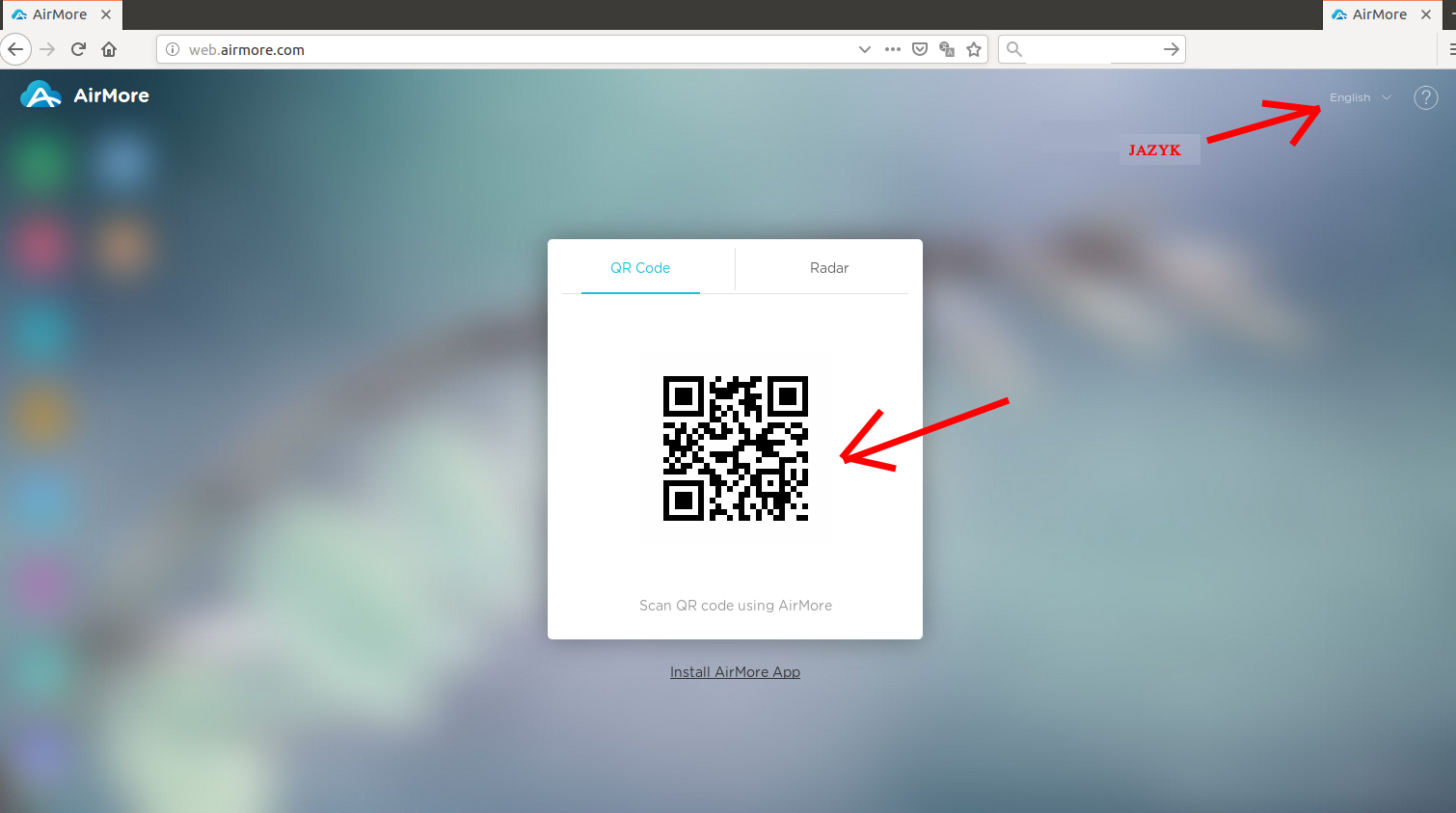
- in the AirMore app, click "Scan to connect"
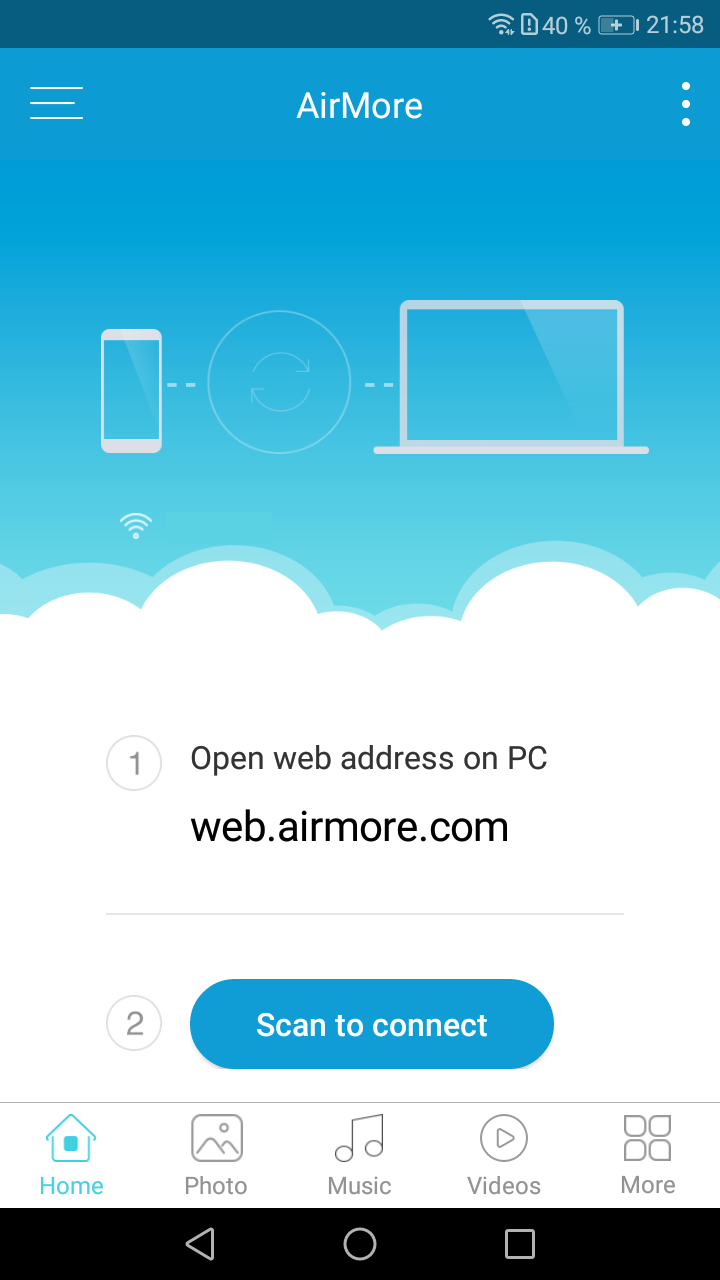
- point the camera at the QR code you see on your computer monitor
- on your computer, click on Clipboard
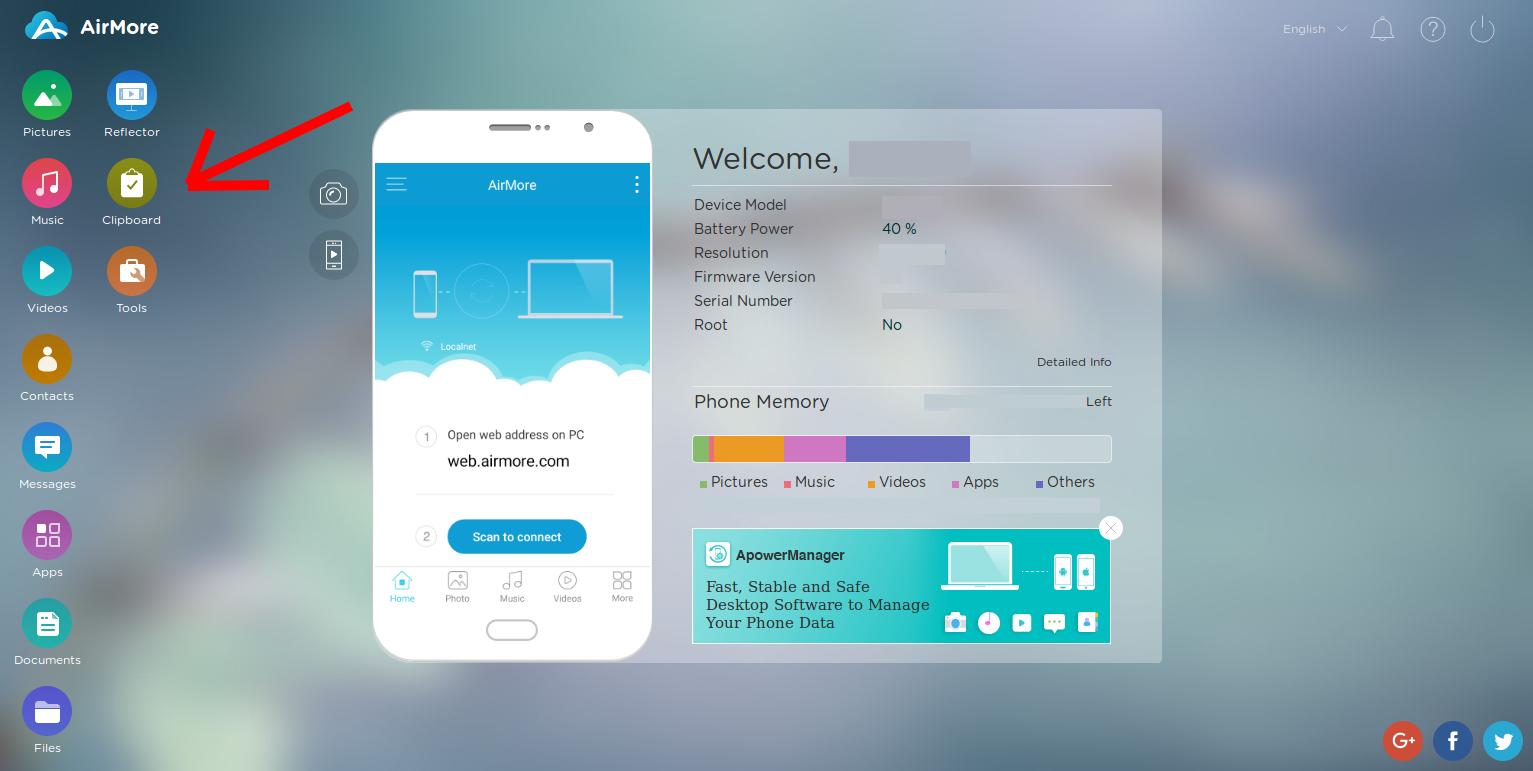
- copy and paste the text. It is always worth inserting several articles there, not just one. The length of the text is not limited in any way. It is a good idea to separate the individual articles somehow so that you know that you are reading the next article. In this case, I separated the text with the letters "rrrrrrrrrrrrrr"
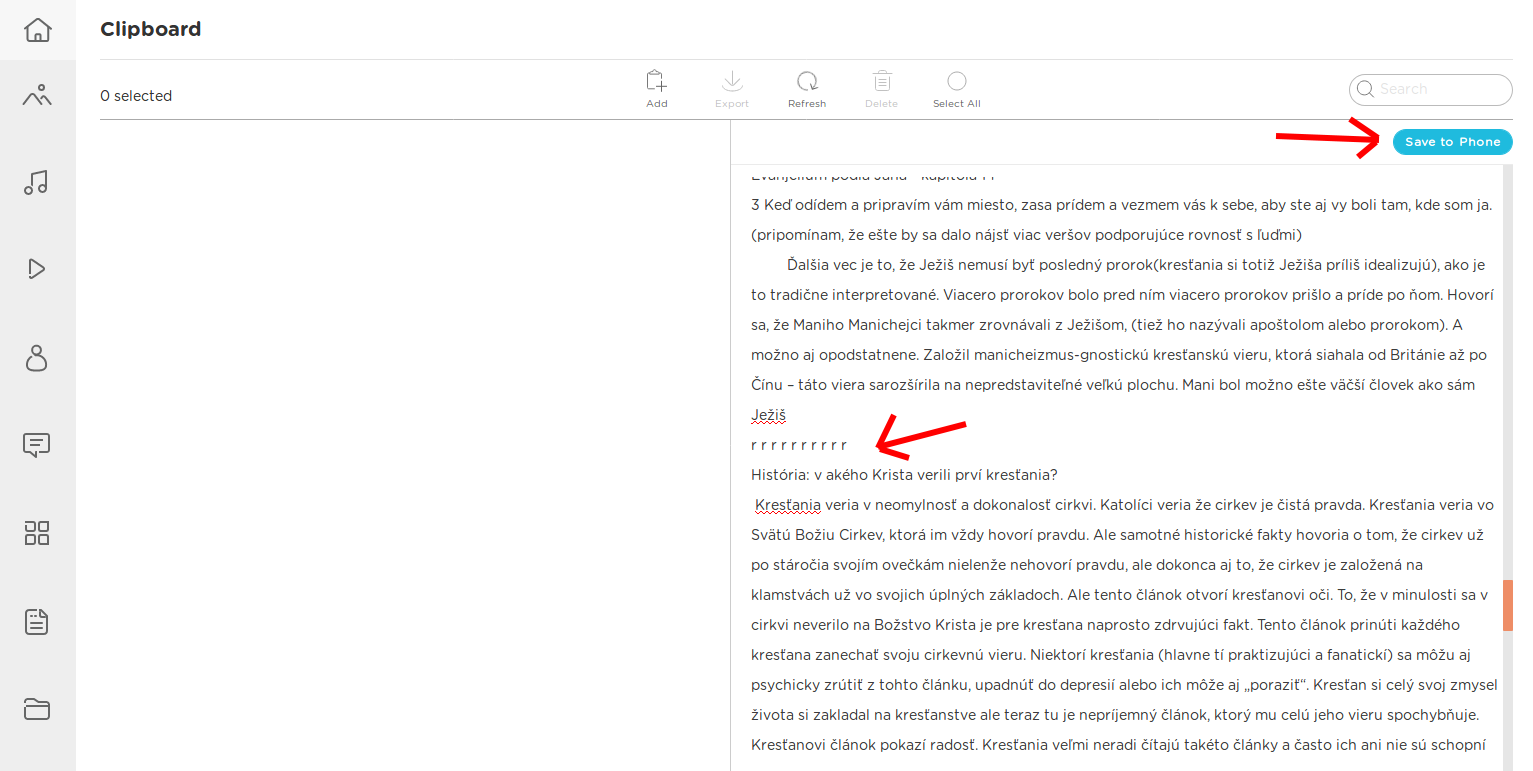
- click Save to Phone
- open the TTS reader application and paste the text there

- tap play. Playback can be paused at any time
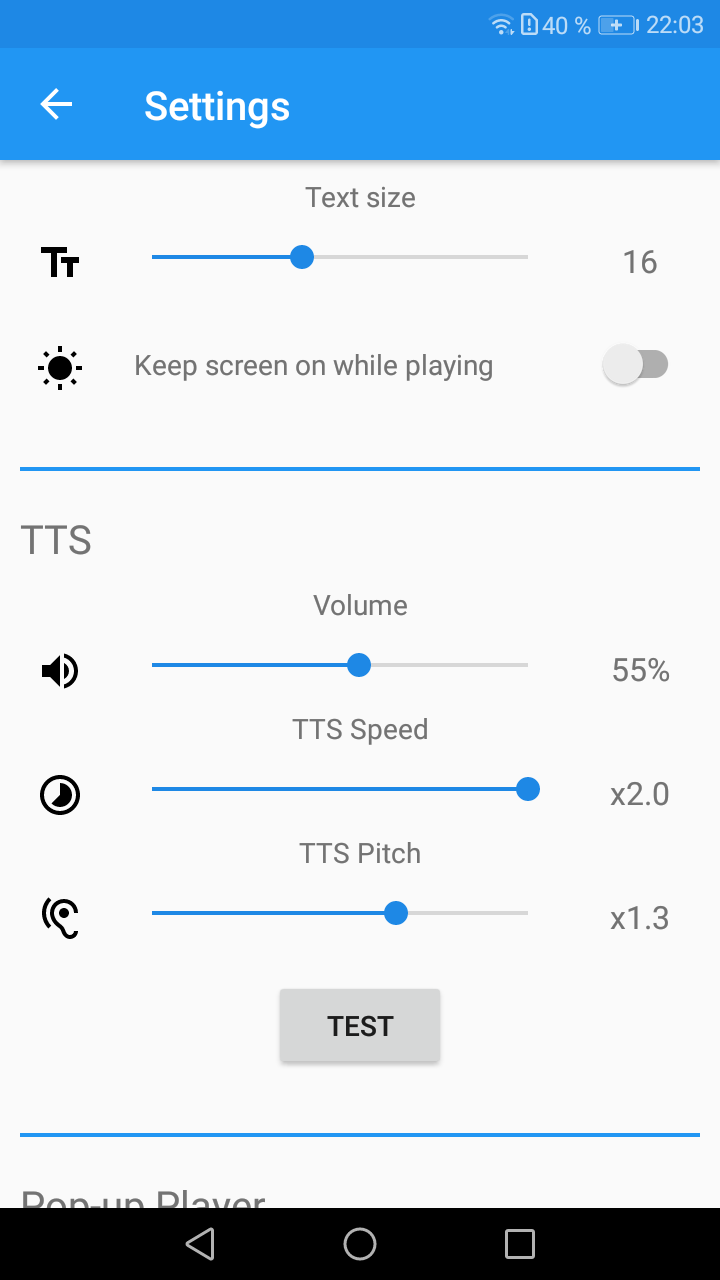
- I also show the recommended settings (=Settings) in TTS Reader – maximum playback speed. Speed = Speed
For privacy reasons, e.g. on the bus, train, at boarding school, etc., listen through headphones